A PC that won't boot is one of the few computer problems that genuinely stops you cold. No error message to Google. No desktop to click around in. Just a black screen, or a fan spinning, or a logo that sits there mocking you. I've been on the receiving end of this more times than I'd like to admit — the worst was a client's machine three hours before a deadline, with a failed drive and no backup. That one hurt.
What follows is the process I actually run now, in order, whenever a machine refuses to start. It's the same approach whether you're dealing with Windows 10, Windows 11, or a build from 2016. The trick isn't knowing every fix. It's knowing which symptom you're looking at, because "won't boot" covers at least four completely different failures.
Key Takeaways
- Identify the failure stage first: no power, POST failure, no Windows boot, or boot loop. Each needs a different fix.
- Fans spinning doesn't mean the PC is fine — power reaching the fans says nothing about whether the motherboard completes POST.
- Windows recovery commands (
bootrec,sfc,DISM) fix bootloader problems, not dead hardware. - A motherboard is "fried" only if it shows zero signs of life with a known-good power supply and no POST beeps or debug LEDs.
- Backups before troubleshooting. Always. The one time you skip it is the time you lose data.
Start with the exact symptom, not the fix
Most guides jump straight to solutions. That's backwards. A boot failure isn't one problem — it's a family of them, and the fix for one will do nothing for another. Before you touch anything, watch what the machine actually does when you press the power button.
I keep four categories in my head. Every dead PC falls into one of them.
Which of these four scenarios matches yours?
- Nothing at all. No fans, no lights, no sound. Dead silent.
- Power but no display. Fans spin, LEDs glow, screen stays black.
- POST, then nothing. You see the manufacturer logo or BIOS screen, then it hangs or restarts.
- Windows tries to load and fails. Spinning dots, blue screen, or a restart loop.
The first two are almost always hardware. The last two are usually software or storage. That single distinction saves you an hour of pointless work — I once wasted forty minutes running boot repair commands on a machine whose RAM stick had simply come loose. The commands did nothing because the problem was never the bootloader.
The first thing to do, regardless
Unplug everything except power, keyboard, and monitor. I mean everything — USB drives, printers, external disks, that ancient webcam. A surprising number of "dead" PCs are just trying to boot from a USB stick that's still plugged in. It sounds trivial until it happens to you at 11pm.
What should I do if my Windows computer won't boot?
If the PC reaches the point where Windows tries to start — spinning dots, a brief logo, then nothing — the hardware is probably fine and the boot configuration is the suspect. You need to get into the Windows Recovery Environment.

Force it. Press the power button to start the machine, and the moment Windows begins loading, hold the power button down for five seconds to cut it. Do this two or three times in a row. On the third attempt, Windows detects the failed starts and drops you into Automatic Repair automatically.
Run these commands in this order
From Automatic Repair, navigate to Troubleshoot → Advanced options → Command Prompt. Then, one at a time:
bootrec /fixmbr— repairs the master boot record.bootrec /fixboot— writes a new boot sector.bootrec /rebuildbcd— scans for Windows installations and rebuilds the boot configuration data.sfc /scannow— checks for corrupted system files.
If sfc reports it can't fix everything, follow with DISM /Online /Cleanup-Image /RestoreHealth. In my experience, rebuildbcd alone resolves roughly half of bootloader failures. The rest need the DISM pass, which is slower — give it ten to twenty minutes and don't interrupt it.
When the commands can't find a Windows installation
If rebuildbcd says it found zero installations, that's your answer: the drive isn't being read. Either it's disconnected, failing, or the partition table is damaged. Stop running commands. Open the case and check the drive's cables, or move on to the hardware section below. Software can't fix a drive that isn't there.
How do I force a PC to boot?
You can't force a machine to boot in the sense of overriding a hardware fault — but you can force it into recovery, and you can force it past a stuck boot device. Two methods cover almost every case.

The first is the power-cut trick described above, which forces Windows into Automatic Repair after three failed starts. It works on both Windows 10 and 11, and it's the fastest route to a command prompt when nothing else responds.
The second is getting into the firmware setup directly. On most desktops and laptops, tap Del, F2, or F10 repeatedly from the instant you press power — timing matters, and if you wait for the logo you're already too late. Once you're in, you can check whether the drive is even detected, and set the correct boot order. That's how you "force" a boot when the machine is trying the wrong device first.
Why do fans spin but nothing shows?
Because power is reaching the fans, but the motherboard isn't completing POST. The fans run on a simple 12V line; they'll spin even when the CPU, RAM, or graphics aren't working. It's a reassuring sight that means less than people think. Treat a spinning fan with a black screen as a POST failure, not a power success.
Hardware diagnosis: when software isn't the answer
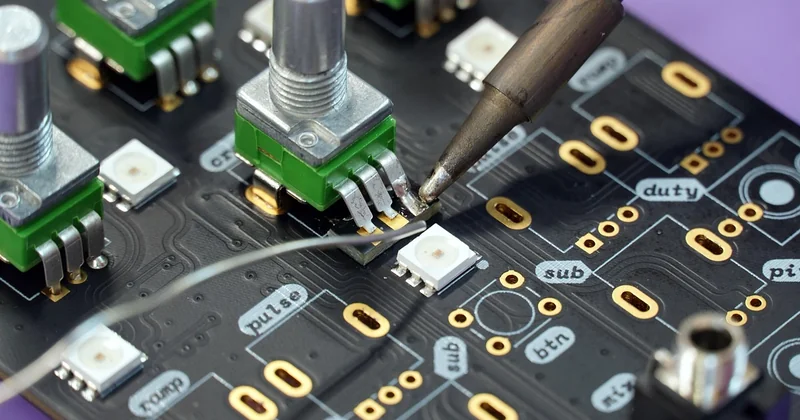
If you've confirmed the machine won't POST — no BIOS screen, no logo, just fans — stop thinking about Windows entirely. This is a hardware problem, and you diagnose it by elimination.
Test the power supply first
The power supply is the most common cause of no-POST failures, and also the easiest to rule out. If you have a spare known-good PSU, swap it in. If the machine suddenly springs to life, you've found your culprit. Without a spare, a paperclip test on the green and black pins will tell you whether the PSU fires up at all — it won't tell you if the rails are stable under load, but it filters out a completely dead unit in two minutes.
RAM's the silent killer
Pull every RAM stick, then reseat just one. Try each stick individually in the primary slot. A single bad module can prevent POST entirely, and it produces no beep and no error — the machine just sits there. I've fixed more no-POST machines with a RAM reseat than with any other single action. If the slot's dusty, blow it out. Contact issues are real.
Does the drive show up in BIOS?
If the machine POSTs but Windows never loads, the storage is the next suspect. Enter the firmware setup and look at the drive list. If your boot drive isn't listed, the problem is the drive or its connection — not Windows. Check the SATA or power cable, try a different port, and listen for clicking or grinding. If the drive is detected but SMART data shows reallocated sectors climbing, you're looking at a drive on its way out. Back up immediately if it still mounts anywhere.
How to tell if a motherboard is fried?
A motherboard is genuinely dead when it shows no signs of life at all with a power supply you've confirmed is good. Specifically: no fans, no LEDs, no debug display, no POST beep even with RAM and GPU removed, and no response to the power button's header pins. If you can short the power pins directly and nothing happens, that's a strong indication.
Before declaring it dead, though, do these checks. Look for swollen or leaking capacitors near the CPU socket — bulging tops are a physical, visible failure. Smell for a burnt odor. Check that the 24-pin and 8-pin CPU power connectors are fully seated. And confirm the case front-panel connectors are on the right header pins — a misaligned power switch mimics a dead board perfectly. I've seen "dead" motherboards come back to life twice just from reseating the front-panel connector.
| Symptom | Most likely cause | First action |
|---|---|---|
| No power at all, silence | PSU, power switch, or board | Paperclip test the PSU |
| Fans spin, black screen | RAM or GPU | Reseat RAM, one stick at a time |
| POST but no Windows | Drive or boot order | Check drive detection in BIOS |
| Restart loop on logo | Corrupted bootloader | Run bootrec /rebuildbcd |
| Blue screen at startup | Driver or system file | Run sfc /scannow, then DISM |
What to do if PC has boot failure?
A boot failure that recurs after you've "fixed" it is telling you something the first fix missed. If the machine boots fine one day and fails the next, you're likely looking at an intermittent hardware fault — a dying drive, a marginal PSU, or failing RAM — rather than a software glitch. Software problems don't heal and then relapse for no reason.
My rule: if the same fault returns within a week, stop patching software. Replace the suspect component. A drive that fails boot twice in seven days is a drive you should not trust with anything.
Check the boot order before anything else
Occasionally the fix is embarrassingly simple. A BIOS update, a CMOS battery going flat, or a power surge can reset the boot order, and the machine spends forever trying to boot from an empty network or an old optical drive. Enter the firmware setup and confirm your Windows drive is first in the boot priority. If the CMOS battery is dead — usually after five or more years — the settings won't survive a power cut. Replacing that coin cell costs almost nothing.
A final word on not losing your data
Here's the uncomfortable truth in all of this: the troubleshooting steps are the easy part. The hard part is what you do before the machine dies. Every serious boot failure I've dealt with that ended badly — the client three hours from their deadline included — was a failure of backups, not of repair skill.
So the next time this happens, before you run a single command, ask yourself: is there anything on that drive I can't afford to lose? If the answer is yes, and the drive still spins, stop. Pull it, connect it elsewhere, and copy the data off first. Then troubleshoot at your leisure.
And if the machine is truly, finally dead? A failed motherboard or a dead drive isn't the end. It's just a signal that a component reached the end of its life — which, for a machine that's given you five or six years of work, is a fair trade. The data survives if you planned for it. The hardware was always going to die eventually. What you choose to do in the five minutes after it does is what actually matters.