You plug an old laptop into a socket, hit the power button, and wait. And wait. Two minutes later you're staring at a desktop, wondering why you ever tolerated this machine. Then someone hands you the same model with a solid-state drive, and the whole thing boots in eleven seconds. Same processor. Same RAM. Different storage. That gap is the entire SSD vs HDD story in one scene.
I've done this swap on more machines than I care to count — mine, friends', a couple of client workstations — and the pattern never changes. Swapping a mechanical drive for a solid-state one is the single biggest subjective speed upgrade you can make to a computer that isn't brand new. Not the CPU. Not the RAM. The storage. That still surprises people, so let's talk about why.
Key Takeaways
- An SSD has no moving parts; an HDD spins magnetic platters and moves a read/write head. That mechanical reality explains almost every difference between them.
- Latency is where the real gap lives: roughly 0.1 ms for an SSD versus 5–10 ms for a spinning disk, before you even talk about throughput.
- Modern NVMe drives can hit several gigabytes per second; a good SATA SSD tops out around 550 MB/s; a 7,200 rpm HDD manages 100–200 MB/s in the best case.
- SSDs draw less power and produce less heat, which matters more on laptops than desktops.
- HDDs still win on cost per terabyte for bulk storage — surveillance footage, media archives, cold backups.
- Lifespan depends on how you use the drive, not just the technology. Endurance ratings and workload matter more than the label on the box.
SSD vs HDD: why does one feel instant and the other feel sluggish?
Here's the thing most spec sheets bury: raw throughput is not what makes a drive feel fast. Latency is. When you double-click an icon, your system issues a small read request and then waits for an answer. On a mechanical drive, that answer has to physically travel — the head has to move to the right track, the platter has to rotate to the right sector. We're talking milliseconds, and milliseconds are an eternity when your operating system fires off hundreds of small requests just to load a desktop.
An SSD answers almost instantly because there's nothing to move. Flash memory cells get addressed electrically, and the round trip is measured in microseconds, not milliseconds.
The mechanics behind the gap
A hard disk drive stores data on rotating magnetic platters. A mechanical arm with a read/write head hovers above the surface, and every access means positioning that arm and waiting for the correct sector to spin underneath it. At 7,200 rpm, one full rotation takes about 8 milliseconds. Queue up a few dozen random reads and you've built a noticeable delay out of nothing.
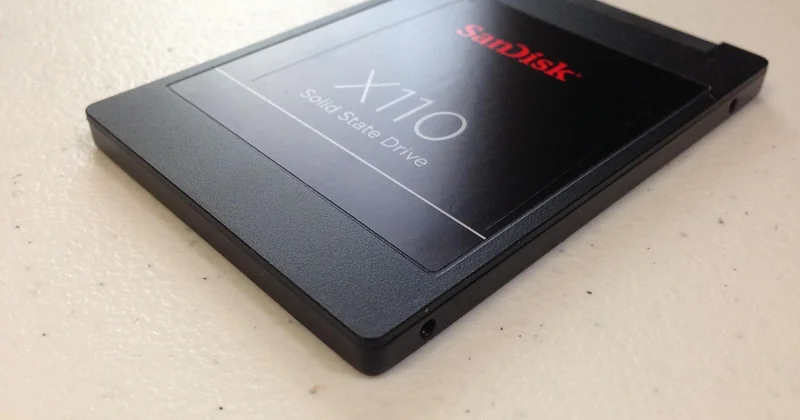
A solid-state drive stores data in NAND flash chips — no platters, no arm, no rotation. Random reads across scattered locations cost roughly the same as sequential ones, which is why a fragmented SSD barely slows down while a fragmented HDD crawls.
Which brings up the number that matters most:
- Latency: around 0.1 ms on a decent SSD versus 5–10 ms on a hard drive. That's a 50–100x difference, and it's what you actually feel.
- Sequential throughput: a 7,200 rpm HDD does 100–200 MB/s. A SATA SSD does about 550 MB/s. A PCIe 4.0 NVMe drive can exceed 7,000 MB/s.
- Random IOPS: tens of thousands for NVMe, low hundreds for a spinning disk.
Notice how the throughput gap is impressive but the latency gap is transformative. Copying a 20 GB file is a throughput problem. Opening your browser, launching a game, alt-tabbing, saving a document — those are latency problems, and they happen hundreds of times an hour.
What this means in practice
I once timed the boot sequence on a five-year-old office desktop before and after swapping its 500 GB mechanical drive for a basic SATA SSD. Two minutes and ten seconds, down to twenty-eight seconds. Nothing else changed. The machine was otherwise identical, and it felt three years younger.
That's the honest version of the upgrade pitch. You're not buying bigger numbers. You're buying the disappearance of a thousand tiny waits.
HDD vs SSD speed: where the numbers actually matter
Not every workload cares equally. This is where a lot of comparisons go wrong — they throw one benchmark table at every reader and call it a day. If your work is mostly reading one large file sequentially, an SSD's advantage shrinks considerably. If your work is loading thousands of small assets, the advantage explodes.
What actually benefits from an SSD
Operating systems. Game level loads. Photo and video editing catalogs, where thumbnails and previews are tiny scattered reads. Databases. Virtual machines. Compiling code. Any task that touches many small files in rapid succession rewards low latency enormously.
Game loading is the clearest example. Modern titles stream assets constantly, and on a mechanical drive you get those telltale hitches when the game world outruns the disk. On an SSD, texture pop-in mostly vanishes and level transitions drop from half a minute to a few seconds.
Where the upgrade matters less
Storing a film collection. Writing nightly backups. Keeping a photo archive you open twice a year. These are sequential, infrequent operations, and a hard drive handles them perfectly well. You'd be paying a premium for speed you never trigger.
| Characteristic | HDD | SATA SSD | NVMe SSD |
|---|---|---|---|
| Typical sequential read | 100–200 MB/s | ~550 MB/s | 3,000–7,000+ MB/s |
| Access latency | 5–10 ms | ~0.1 ms | ~0.05 ms |
| Moving parts | Yes | No | No |
| Noise | Audible clicks and hum | Silent | Silent |
| Shock resistance | Low | High | High |
| Cost per TB | Lowest | Mid | Highest |
| Best role | Bulk and cold storage | General upgrades | Boot drives and heavy work |
The practical upshot: put your operating system and active projects on flash, and keep the big cold pile on spinning metal. That hybrid setup costs far less than an all-flash array and delivers nearly all the felt benefit.
Is HDD still worth it in 2026?
Yes — for the jobs it was always good at. Buying a hard drive to run Windows or launch games in 2026 is a mistake, and I'd say that plainly to anyone who asked. Buying one to hold four terabytes of video projects you finished in 2021 is still the smart money.
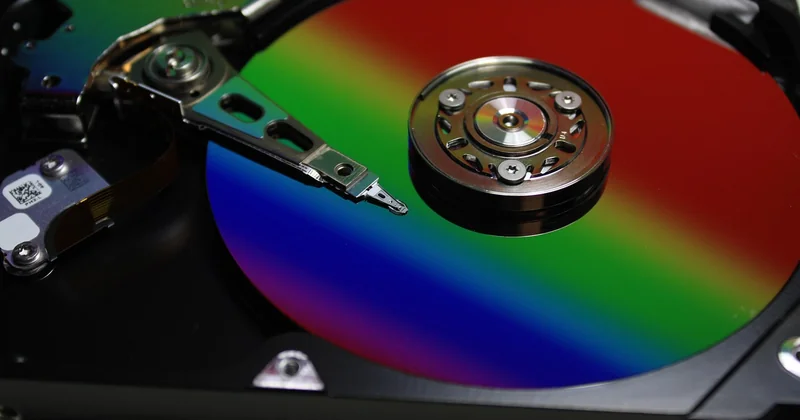
The reason the answer hasn't flipped is structural: flash capacity keeps getting cheaper, but magnetic storage keeps getting cheaper too, and at the very large sizes the gap stays wide. When you need 8, 16, 20 TB in one enclosure, mechanical drives remain in a price bracket that solid-state simply doesn't reach. I keep two 8 TB drives in a mirrored pair for archival work. Replacing them with equivalent flash would have cost several times more for capacity I don't access interactively.
Signs your HDD is now the wrong choice
- You hear the drive working during everyday tasks — opening apps, saving files, switching windows.
- Boot takes more than a minute on otherwise decent hardware.
- Your system freezes briefly while the disk light stays solid.
- You regularly work with large catalogs of small files.
Any of those and the upgrade pays for itself in frustration alone.
What uses more power, HDD or SSD?
The SSD, by a comfortable margin. A 2.5-inch SATA SSD typically draws somewhere between 2 and 5 watts under load and well under a watt when idle. A 3.5-inch desktop hard drive pulls roughly 6 to 9 watts while working, plus a spike at spin-up that can briefly exceed that. Laptop-class 2.5-inch drives are leaner, but still generally above an equivalent SSD.
Two consequences follow, and the second one is underrated.
First, heat. That extra power becomes heat inside a small chassis, and laptops with mechanical drives ran warmer and louder for it. Second, battery life. On a portable machine, the storage difference contributes a modest but real improvement to runtime — not the headline number, but a couple of percent here, a little less fan noise there, and it adds up over a long day. If you're upgrading an older laptop, this is a quiet bonus on top of the speed.
SSD vs HDD lifespan and durability
This is the question where popular wisdom is most out of date. The old claim — that SSDs wear out quickly and hard drives last forever — badly misreads how each technology fails.
How each drive fails
Flash memory cells have a finite number of write cycles, and SSDs are rated for total bytes written over their lifetime. A typical consumer drive is rated in the hundreds of terabytes written. For normal use — browsing, documents, some gaming — you'd take many years to approach that ceiling, and controller firmware spreads writes across cells to slow the wear.
Hard drives fail mechanically. Bearings seize, heads crash, motors die. Those failures are sudden and often unrecoverable without professional help. And crucially, mechanical drives are fragile in motion: knock a running laptop and you can end the drive's life in one second. An SSD doesn't care. Drop it, shake it, carry it in a bag — no moving parts to damage.
The honest comparison
| Factor | HDD | SSD |
|---|---|---|
| Typical failure mode | Mechanical, often sudden | Controller or cell wear, often gradual |
| Sensitivity to shock | High | Very low |
| Behaviour as it ages | Often degrades with fragmentation | Can slow when very full |
| Data recovery after failure | Sometimes possible, expensive | Often difficult or impossible |
One lesson I learned the hard way: neither technology is a backup. I lost a photo library years ago to a head crash on a drive I'd assumed was fine. It had given no warning. The replacement was an SSD, and it's been reliable — but it's also mirrored to a second drive and synced offsite, because the failure mode changed, not the risk.
If you want the blunt version: SSDs fail less often from physical mistreatment, HDDs fail more predictably with age, and neither excuses you from having a backup.
Matching the drive to the job
Forget abstract debates about which is better. Ask what the machine actually does all day.
When an SSD is the right call
- Boot drive on any machine you use daily.
- Laptops that travel — shock resistance and power draw both matter.
- Gaming rigs, where level loads and asset streaming are constant.
- Video editing and photo catalogs with active, frequently accessed files.
- Anything running virtual machines or databases.
- Older computers you want to keep usable for another couple of years.
Where a hard drive still earns its slot
- Bulk media archives you read rarely.
- Local backup targets, ideally paired with an offsite copy.
- Network-attached storage where capacity per dollar dominates.
- Surveillance recordings written continuously and rarely reviewed.
- Cold storage of finished projects you're contractually obliged to retain.
My own setup follows this logic: one NVMe drive for the operating system and active work, one SATA SSD for games and current projects, and two large mechanical drives for archives and backups. The fast tier handles everything interactive. The slow tier handles everything I want to keep but don't touch.
SSD vs HDD for photo storage
A split answer, and I'll defend it. Keep your active catalog — the last year or two of shoots, the files you cull, edit and export — on flash. The difference when scrolling a library of raw files is not subtle; previews render instantly instead of trickling in.

Move everything older to a mechanical drive. A finished shoot is a set of large files you open occasionally. That's exactly the workload a hard drive handles well, and it's a workload that grows forever. Paying flash prices for a decade of archives adds up fast, and you gain nothing you'll notice.
The bottom line
The SSD-versus-HDD question isn't really a contest. Flash won the interactive tier years ago and isn't giving it back. The interesting part is that mechanical storage didn't lose — it got pushed into a corner of the market where its weakness, speed, doesn't matter and its strength, cheap capacity, matters enormously.
So the advice isn't "buy an SSD." It's "stop making one drive do two incompatible jobs." Put the things you touch on flash. Put the things you keep on metal. And whatever you choose, remember that both of them will eventually fail — which is why the drive you didn't think about, the backup, is the one that decides whether that matters. I still think about that lost photo library more than I think about any benchmark in this article.