You just reinstalled Windows, and the boot menu is gone. GRUB still exists on disk, but Windows decided it was the only operating system in the universe and overwrote the EFI bootloader. I've seen this happen three times on my own machines, twice on a client's laptop, and once at 11 PM the night before a presentation where my entire slide deck lived on the Linux partition. Each time, the fix took fifteen minutes. Each time, I lost an hour of sleep first.
Dual booting Windows and Linux safely isn't difficult. It's just unforgiving of the two things we all do: skipping backups and assuming Microsoft plays nice with other operating systems. It doesn't. It never has.
Here's what actually matters, in the order it matters.
Key Takeaways
- Two physical drives beat one partitioned drive, every time, for both safety and speed of recovery.
- Windows updates will eventually overwrite your bootloader. This is a when, not an if. Plan for it.
- Secure Boot and BitLocker interact with Linux in ways that can lock you out of your own data if you don't disable them first.
- Install Windows first, Linux second. Doing it the other way round is a masochistic hobby.
- A 30-minute backup before you start is the single highest-value step in this entire process.
- Keep a Linux live USB in a drawer. You will need it. Probably sooner than you think.
Why most dual boot guides skip the part that actually matters
Every tutorial tells you to shrink a partition, write an ISO to a USB stick, and click "Install alongside." None of them warn you about the three failure modes that ruin the experience weeks later.
The Windows update bomb
Twice a year, sometimes more, Microsoft pushes a feature update that rewrites the EFI System Partition. Your GRUB entry vanishes. The machine boots straight into Windows like nothing else ever existed. This has happened to me on Windows 10 and Windows 11, on both a single-drive and a two-drive setup. It's not a bug Microsoft patches—it's a design habit.
The fix is a live USB and a chroot, or the boot-repair tool if you're on Ubuntu and feeling lucky. I'll cover this below.
The BitLocker trap
If your Windows drive is encrypted with BitLocker and you resize its partition without suspending encryption first, you can corrupt the volume. Microsoft's own documentation buries this in a footnote. I found out the hard way in 2023 when a colleague's ThinkPad refused to unlock after a dual boot attempt. The recovery key existed. He just didn't have it printed anywhere.
Print your recovery key. Or better: suspend BitLocker from an elevated command prompt with manage-bde -protectors -disable C: -rebootcount 1, do the install, then re-enable it.
Should you dual boot on one drive or two?
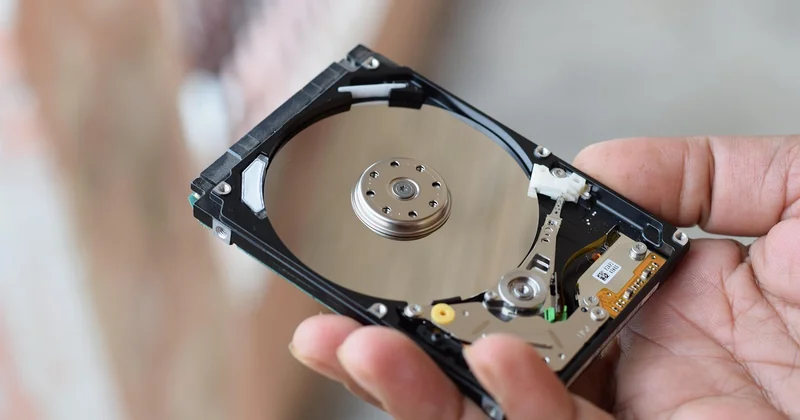
I'll take a stance here and defend it: two separate physical SSDs is the only setup I recommend for anyone who actually uses their computer for work. Not because a single-drive dual boot can't work—I ran one for eighteen months—but because the failure modes are so much worse when everything shares one disk.
| Single SSD, two partitions | Two separate SSDs | |
|---|---|---|
| Setup complexity | Moderate. You must shrink the Windows volume carefully. | Trivial. Each OS sees a clean drive. |
| Risk to Windows data if Linux install fails | Real. A partition table mistake can nuke everything. | Zero. Worst case, you wipe the Linux disk. |
| Bootloader recovery after updates | Annoying. Both OSes compete for the same EFI partition. | Manageable. You can disable one drive in UEFI and boot the other. |
| Performance impact | Occasional NVMe contention during heavy I/O. | None. |
| Cost | Free. | One extra drive, roughly the price of a decent dinner. |
| Recommended for | Hobbyists, testing, low-stakes machines. | Anyone with actual work on either OS. |
Dual boot Windows 11 and Linux on separate drives
This is the configuration I've run since late 2024. Windows 11 on a 1TB NVMe, Fedora on a 500GB SATA SSD. Both have their own EFI partition. The Windows drive's EFI is untouched by Linux, and vice versa.
The practical advantage: when Windows pushes an update that rewrites its bootloader, my Fedora install simply isn't on the same ESP. It doesn't get touched. I go into UEFI, change the boot order, and I'm back in business within thirty seconds. No chroot. No live USB. No panic.
The catch? Some laptop UEFIs are aggressive about hiding secondary drives from the boot menu. If your machine refuses to show both, you may need to manually add a boot entry withefibootmgr from the Linux side. I had to do this on a Dell XPS. It took me longer to figure out than I'd like to admit. Dual boot Windows 11 and Linux on the same SSD
Doable, but here are the three things that go wrong:
- You shrink the Windows partition using Windows' own Disk Management tool (not GParted, not a third-party tool—Windows' native one). GParted can move partitions Windows refuses to move, and Windows will sometimes refuse to boot afterward.
- You create a separate EFI System Partition for Linux if possible, or you accept that both OSes will share the Windows ESP and you'll live with the consequences. Most modern distros will use the existing ESP by default.
- You never, ever install Linux before Windows on the same drive. Windows will overwrite GRUB and won't even ask.
I helped a friend do this on a 512GB laptop last year. It worked. It still works. But when the next Windows feature update lands, he's going to call me. He always does.
How to prepare your machine without losing data
Backup first. I mean it. Not "I'll back up tomorrow." Now.
What I did on my last dual boot, and what I recommend:
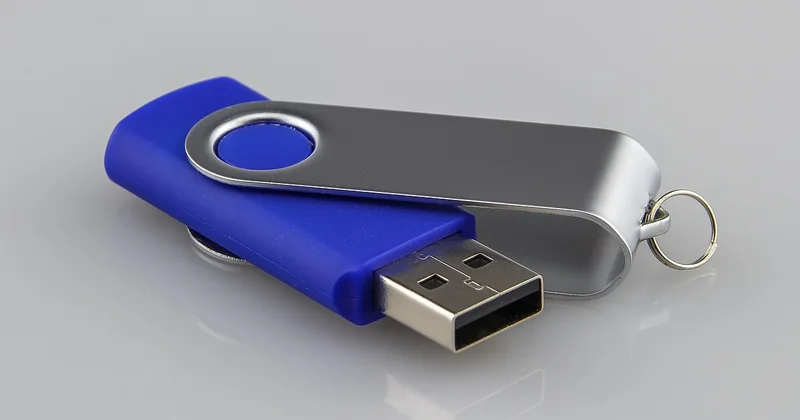
- Clone the entire Windows drive to an external SSD with Macrium Reflect or Clonezilla. Roughly 45 minutes for a 1TB drive over USB 3.2.
- Export your BitLocker recovery key to a text file, print it, and email it to yourself. Yes, all three.
- Write down your motherboard model and note the key for the boot menu (usually F12, F11, or Esc).
- Disable Fast Startup in Windows' power settings. This is not optional. Fast Startup leaves the NTFS filesystem in a hibernated state that Linux cannot safely write to.
- Disable Secure Boot, or at least be prepared to sign your own kernel modules. Most distros ship with a signed shim, but proprietary drivers (Nvidia, some Wi-Fi cards) won't load without extra steps.
One more thing: update your UEFI firmware before you start. I bricked a dual boot once because the BIOS was three versions behind and didn't properly enumerate a second NVMe slot. The drive was fine. The firmware just didn't see it.
How to recover GRUB after a Windows update breaks it
This is the scenario every guide skips. It's also the one you'll hit within twelve months of setting up your dual boot.
The boot-repair shortcut
Boot a live USB of Ubuntu or Linux Mint. Connect to the internet. Install boot-repair from the terminal, launch it, and choose "Recommended repair." It handles 90% of cases. I've used it twice with no issues.
The manual chroot method
When boot-repair fails (and it will, occasionally), here's the drill:
- Boot the live USB.
- Mount your Linux root partition:
sudo mount /dev/nvme0n1p2 /mnt - Mount the EFI partition:
sudo mount /dev/nvme0n1p1 /mnt/boot/efi - Bind the virtual filesystems:
for i in /dev /dev/pts /proc /sys /run; do sudo mount -B $i /mnt$i; done - Chroot in:
sudo chroot /mnt - Reinstall GRUB:
grub-install /dev/nvme0n1thenupdate-grub - Exit, unmount everything, reboot.
Fifteen minutes if you know the commands. Two hours if you don't. This is why I keep a live USB in a drawer next to my desk.
What about Secure Boot and kernel-level anticheat?
Two real annoyances that the "just install it" tutorials ignore.
Secure Boot: leave it enabled if you can. Every major distro since 2020 ships a signed bootloader that works with Microsoft's keys. Fedora, Ubuntu, openSUSE, and Debian all boot fine with Secure Boot on. You only need to disable it if you're compiling custom kernels or running unsigned out-of-tree modules. If you do disable it, be aware that Windows 11's device encryption may complain, and some DRM-protected streaming services will refuse to play in 4K.
Kernel-level anticheat: games like Valorant, Fortnite, and Faceit's CS2 client require a kernel driver that Linux doesn't support. There's no workaround that isn't a VM with GPU passthrough—which I've set up twice and would not wish on anyone who values their weekend. If competitive gaming is why you keep Windows around, dual boot is fine. You just reboot when you play.
How to enable dual boot in Windows 11
Windows 11 doesn't have a "enable dual boot" toggle. What you're really doing is preparing Windows to coexist. Three settings matter:
- Disable Fast Startup via Control Panel → Power Options → Choose what the power buttons do.
- Suspend BitLocker before shrinking the partition. Re-enable it after Linux is installed and you've confirmed both OSes boot.
- Shrink the Windows partition using Disk Management, not a third-party tool. Leave at least 40GB for a modern Linux distro—60GB if you plan to install many applications.
Once Linux is installed, Windows Boot Manager will still list itself first. Change the UEFI boot order from the firmware menu (usually F2 or Del at startup), not from Windows.
The honest truth about dual booting in 2026
Virtual machines have gotten good enough that a lot of people who used to dual boot now just run Linux in a VM. WSL2 is genuinely excellent for development work. If your Linux needs are all terminal-based, a VM is easier and safer, and you'll never fight a bootloader again.
But if you need full hardware access—GPU acceleration, USB passthrough, native performance for compilation or video encoding—dual boot is still the answer. Nothing else gets you a bare-metal kernel on the same physical machine without compromises.
Just do it on two drives. Print your recovery keys. Keep a live USB nearby. And when Windows eventually breaks your bootloader next spring, don't take it personally. It's not you. It's the way Microsoft has always treated the boot process: as theirs.