Someone asked me last week why their brand-new card rendered a 12-minute 4K timeline faster than a card that costs twice as much. The answer had nothing to do with raw power. They'd been editing in Premiere Pro with a GPU that's excellent for Resolve, and vice versa. That single mismatch cost them about 40% of their render speed, and they had no idea.
So let's talk about what actually matters when you buy a graphics card for editing. Not the spec sheet. Not the marketing. The stuff that shows up in your export times.
Key Takeaways
- Your editing software matters more than the card's tier: Adobe apps favor NVIDIA's CUDA pipeline, Resolve leans hard on AMD and VRAM.
- VRAM is the ceiling you hit first. 8GB is cramped for 4K, 12GB is comfortable, and 16GB+ is where multicam and color work stop being painful.
- A mid-range card with the right codec support beats a flagship with the wrong one for most editors.
- RAM and GPU aren't interchangeable. 32GB of system memory is fine for 4K if your card isn't choking.
- Buy for the software you actually use, not the software you might switch to someday.
What graphics card should you get for video editing?
There's no universal answer, and anyone who gives you one is selling something. What I can give you is a decision tree that's held up across every build I've put together in the last few years.
The software-first rule
Before you look at a single GPU model, open the app you edit in and check what it actually accelerates with. Adobe Premiere Pro and After Effects live in NVIDIA's world. CUDA cores and NVENC encoding are why Premiere users consistently report smoother timeline scrubbing on NVIDIA hardware. DaVinci Resolve is different. It loves VRAM and it's genuinely well-optimized for AMD's architecture, especially in the color and Fusion tabs. If you're a one-app editor, this decision basically makes itself.
If you bounce between apps, NVIDIA is the safer bet because its driver stack is broader. That's not brand loyalty, it's just what I've seen hold up across mixed workflows.
VRAM is the real ceiling
I cannot stress this enough: VRAM is the first thing you run out of, not compute. A card with a beefy GPU and 8GB of VRAM will stutter on a 4K multicam sequence while a mid-tier card with 12GB stays smooth.
- 8GB — 1080p editing, light 4K, no heavy effects
- 12GB — comfortable 4K single-cam, some color work
- 16GB and up — 4K multicam, 6K/8K footage, effects-heavy timelines
- 24GB+ — the "I don't want to think about this again" tier
The jump from 8 to 12GB is the single most meaningful upgrade most editors can make. Everything above that is diminishing returns unless you're working with high-bitrate RAW or multicam.
Generation matters less than you think
A current-gen mid-range card will beat a two-generation-old flagship in most editing tasks, because codec support and driver maturity have improved more than raw throughput. You don't need the newest card. You need a card that decodes the footage you actually shoot.
That's the part nobody tells you: hardware encode/decode support for H.265, ProRes, and AV1 varies meaningfully between generations. If your camera shoots 10-bit HEVC, a card without that decoder hands the work to your CPU, and your whole system crawls.
What's the cheapest card that handles 4K editing properly?
You can get into 4K editing for a lot less than a flagship costs. The trick is picking the card where the VRAM floor is just high enough and the codec support is current.
In practice, the entry point for genuine 4K editing (not "4K technically opens") is a card with 12GB of VRAM and modern codec support. Anything below that and you'll hit the ceiling the first time you stack two effects on a 4K clip.
Here's what I tell people who are stretching a budget: buy the cheapest card that clears the 12GB bar, and put the money you save into faster storage and more RAM. Storage speed affects your editing experience more than a marginal GPU upgrade will. A card that's 15% faster won't fix a timeline that's bottlenecked by a slow scratch disk.
And honestly? A used previous-gen card with 12GB is often the smartest purchase for a budget 4K setup. The depreciation curve on last-gen GPUs is steep, and for editing workloads the difference is smaller than the price gap suggests.
What's the best graphics card for video editing and rendering?
Rendering is where the GPU earns its keep, and it's also where buying the wrong card hurts most. Let me break it down by what you're actually rendering.
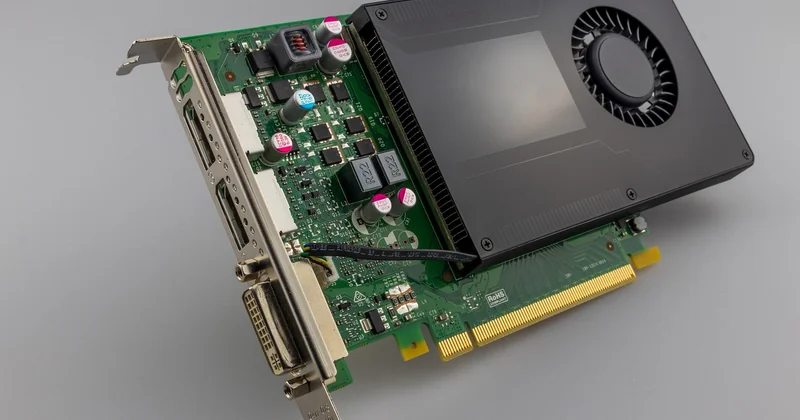
Export speed vs. timeline performance
These are two different problems, and people conflate them constantly. Timeline performance depends on VRAM and decode acceleration. Export speed depends on encode acceleration and raw compute. A card can be great at one and mediocre at the other.
If your bottleneck is scrubbing and playback, prioritize VRAM. If your bottleneck is the export bar sitting there for 20 minutes, prioritize a card with strong hardware encoding. NVENC on modern NVIDIA cards and the equivalent on AMD are what turn a 15-minute export into a 6-minute one.
The comparison that matters
| Card tier | Best for | VRAM sweet spot | Watch out for |
|---|---|---|---|
| Entry (12GB) | 4K single-cam, learning | 12GB | Slow exports on long timelines |
| Mid-range (16GB) | 4K multicam, Resolve color | 16GB | Cost climbs fast |
| High-end (24GB+) | 8K, RAW, effects-heavy | 24GB+ | Overkill for most editors |
Notice there's no "best" column. That's deliberate. The right tier depends entirely on your footage and your software, and the gap between mid-range and high-end is where most people overspend.
What is the 3:2:1 rule in video editing?
The 3:2:1 rule is a backup rule, and it's worth understanding because it has almost nothing to do with your GPU and everything to do with not losing a client's project the night before delivery.
It means: keep 3 copies of your footage, on 2 different types of storage media, with 1 copy stored off-site. Three copies because a single drive can fail silently. Two media types because a power surge can take out every drive connected to the same machine. One off-site because fire, theft, and coffee spills don't care about your RAID array.
Why does this belong in a GPU guide? Because the money you spend on a faster card is wasted if you're not backing up the work that card produces. I've watched editors drop serious cash on hardware and run their entire project archive off a single external drive. That's a disaster waiting to happen. Budget for the backup before you budget for the upgrade.
What is the 80/20 rule in video editing?
The 80/20 rule in editing says that roughly 80% of your results come from about 20% of your effort — and for hardware, the version of this is that 80% of your performance gains come from a small number of component choices.

In my experience, those choices are, in order: enough VRAM, a fast scratch drive, and correct codec support. Everything else (clock speeds, RGB, the exact model number) is noise. I've seen people obsess over a 5% GPU clock difference while editing off a slow spinning drive, and the drive was costing them far more time than the card ever gained back.
Apply the 80/20 lens to your budget too. Spend the 20% that moves the needle, and stop agonizing over the rest.
Is 32GB of RAM enough for 4K video editing?
Yes, for most 4K workflows. 32GB is the comfortable baseline, and it's what I recommend to nearly everyone editing at 4K.
But here's the nuance people miss: RAM and VRAM are not substitutes. If you have 32GB of system RAM and a card with 8GB of VRAM, your bottleneck is the card, not the memory. Adding more RAM won't fix it. The two work together, and shortchanging either one shows up as stutter.
Where 32GB starts to strain: heavy After Effects compositions, 6K or 8K footage, and long multicam timelines. If you're doing any of that, 64GB is worth it. For standard 4K cutting, color, and delivery? 32GB is plenty, and I'd rather you put the extra money toward VRAM than more RAM.
Laptop vs. desktop: the GPU you actually get
A laptop GPU with the same name as a desktop card is not the same card. It's throttled, power-limited, and often has half the VRAM. This trips up more buyers than anything else in this guide.

If you're editing on a laptop, look at the VRAM figure and the power rating, not the model name. A "mobile RTX" card can range wildly in performance depending on how much wattage the chassis allows it to draw. Thin laptops with the same GPU as chunky ones often perform 30% slower on sustained renders, because thermal throttling kicks in once the fans can't keep up.
For desktop buyers, this problem disappears. You get what the box says. If portability isn't a hard requirement, a desktop build is both cheaper and faster for the same money.
Can you edit with a gaming card?
Yes, and for most editors you should. Gaming cards and workstation cards use much of the same silicon. The workstation versions cost more because of certified drivers and support contracts that matter to studios and almost nobody else.
For solo editors and small teams, a gaming card is the smart buy. You get the same codec accelerators, the same VRAM tiers, and you keep the difference. I've delivered commercial work on gaming GPUs for years without a single driver issue that a studio card would have solved.
The decision that actually matters
Stop shopping by tier and start shopping by bottleneck. Open a real project, watch where the playback stutters and where the export crawls, and buy the card that fixes that. For most 4K editors in 2026, that means 12GB of VRAM minimum, current codec support, and a card matched to the software you open every day.
The upgrade that feels exciting is rarely the upgrade that saves you time. The boring one — the right VRAM, the right decoder, the right drive — is the one you'll stop noticing, because it just works. And honestly, "it just works" is the highest compliment you can pay a graphics card.