Your laptop takes four minutes to reach the desktop. You open Chrome, and the fans sound like a jet idling on the runway. You've probably already googled "my computer is running slow how to fix it" and landed on a page telling you to "clean up your disk." Thanks. Very helpful.
Here's what nobody tells you: a slow Windows PC almost always has exactly one bottleneck — and it's rarely the one you think. I've revived machines that colleagues were ready to throw in a skip, and in most cases I never reinstalled Windows once. The trick is finding the actual culprit before you start deleting things and hoping.
This guide walks you through the tips to speed up a slow Windows computer in the order that actually matters — biggest gain first, least risk first. Windows 10 and Windows 11 diverge in a few places, so I flag both as we go.
Key Takeaways
- Open Task Manager, sort by CPU, then by disk — the top process tells you which fix to apply.
- A hard drive at 100% usage with low CPU is the classic signature of a dying mechanical disk, not a virus.
- Swapping a spinning drive for an SSD is the single largest speed jump you can buy, often more than doubling everyday responsiveness.
- Startup apps, not "registry cleaners", are what drag your boot time down.
- Most third-party "PC boosters" do nothing a built-in Windows tool can't do — and some quietly install extra software.
Why your Windows PC is slow: find the bottleneck before you touch anything
Open Task Manager. Press Ctrl + Shift + Esc. If you get the compact view, click "More details." Now click the Performance tab and look at four numbers: CPU, Memory, Disk, and GPU.
Which one sits near 100% while your machine feels sluggish? That's your answer. Everything else is noise.
What each bottleneck actually tells you
- CPU pinned at 90–100% with nothing obvious running: usually a background process, a corrupted service, or genuinely underpowered silicon.
- Memory above 85% while you do everyday tasks: you don't have enough RAM, and Windows is thrashing the pagefile on your disk. Painful on any drive.
- Disk at 100% with low CPU: this is the big one. On a mechanical hard drive, it means the disk physically cannot keep up. On an SSD, it usually means a misbehaving process or a failing drive.
- GPU maxed out while gaming but everything else is fine: that's not a "slow PC", that's a graphics settings problem.
I once spent an embarrassing afternoon on a colleague's laptop, convinced it was malware. Task Manager told the truth in ten seconds: disk at 100%, CPU at 8%. The drive was on its way out. No amount of cleaning would have helped. Ten seconds of looking beat two hours of guessing.
A quick note on Windows 10 vs Windows 11
Task Manager looks nearly identical in both, but the process names differ slightly. Windows 11 groups things more aggressively under "Background processes," and the Startup tab lives in the same place in both. If a guide gives you a path that doesn't exist on your machine, it's probably written for the other version.
Quick wins that take five minutes
Before you spend money, do these. They cost nothing, they're reversible, and on a mid-range machine they can shave a minute or more off boot time.

Disable the apps that start with Windows
Right-click the taskbar, open Task Manager, and go to the Startup apps tab (called "Startup" in Windows 10). You'll see a list with an "Impact" column: High, Medium, Low.
Anything marked High that you don't recognize or actively need at boot — Steam, Spotify, Adobe Creative Cloud, Teams, a printer utility you last used in 2023 — set to Disabled. You can still launch these manually; you're just not paying for them every time you turn the machine on.
On my own machine, disabling six startup entries cut boot time from roughly 90 seconds to under 40. No registry hacks, no software installed.
Free up disk space the right way
Run Disk Cleanup (search for it in the Start menu) and use "Clean up system files" to reach Windows Update leftovers. Then, in Windows 10 and 11, go to Settings > System > Storage and turn on Storage Sense so Windows handles it automatically from now on.
One warning: don't run a "cleanup" that deletes your Downloads folder and your Recycle Bin without you checking first. I've watched someone wipe a client's reference documents that way. Empty the bin yourself, deliberately.
The fix that actually changes everything: storage and memory
Software tweaks have a ceiling. If your PC still has a mechanical hard drive in 2026, no amount of tinkering will make it feel fast, because the hardware itself is the limit.
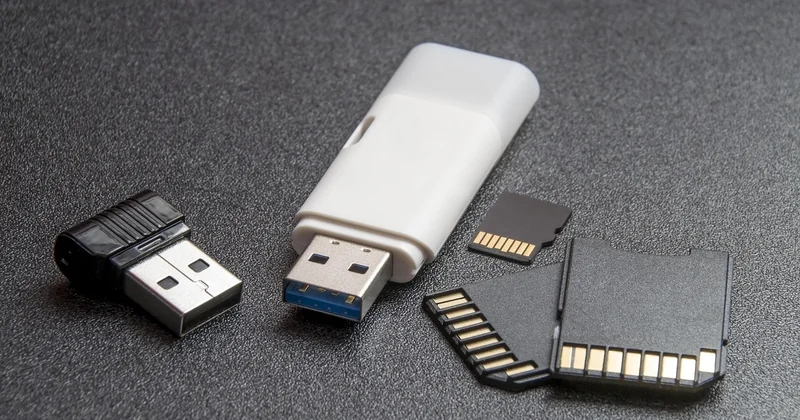
Moving from a hard drive to an SSD
An SSD stores data with no moving parts, so it responds in milliseconds instead of waiting for a spinning platter to find the right spot. Everyday tasks — opening a browser, launching Word, booting Windows — depend heavily on these small random reads.
In practice, on machines I've upgraded, boot times dropped from around two minutes to about twenty seconds, and applications opened noticeably sooner. This is the highest-impact change available to you, and a 500 GB SATA SSD costs far less than a new laptop.
Check whether you need more RAM
Open Task Manager, Performance tab, Memory. If the "In use" figure regularly sits above 85% during normal work, more memory will help. Before buying, check how many slots your machine has and what's already installed — some laptops have soldered memory and cannot be upgraded at all.
| Upgrade | Typical impact | Difficulty | Reversible? |
|---|---|---|---|
| SSD instead of hard drive | Very large — boot and app launch | Moderate | Yes |
| More RAM (if under 8 GB) | Large when multitasking | Easy to moderate | Yes |
| Disabling startup apps | Medium — boot time only | Trivial | Yes |
| Driver updates | Small, but fixes specific stutters | Easy | Yes |
| Third-party "PC booster" | Negligible to negative | Trivial | Often hard to fully remove |
Windows 11 specific settings that genuinely help
Windows 11 ships with a few extras that eat resources on modest hardware. None of them are dangerous to change, and all are reversible.
Turn off visual effects on low-end machines
Search for "Adjust the appearance and performance of Windows" in the Start menu. On the Visual Effects tab, choose "Adjust for best performance." The interface looks plainer, but on a machine with 4 GB of RAM, the difference in responsiveness is real.
Background apps and widgets
Go to Settings > Apps > Installed apps and check the "Advanced options" of anything you don't use — many apps run background tasks even when closed. Windows 11 also keeps a widgets panel and a news feed alive; if you never look at them, disabling them frees a little memory and a little CPU.
My very slow computer: how do I fix it?
If the machine is slow everywhere, not just in one app, the cause is almost always hardware: an aging drive, insufficient memory, or a CPU that simply wasn't built for what you're asking of it. Start with Task Manager to confirm which resource is maxed out. If it's the disk, plan for an SSD. If it's memory, add RAM or close what you don't need. If everything is high at once, the machine is genuinely at its limit.
Can you speed up Windows 10 with one command?
No. You'll see claims about running a single command in Command Prompt to "boost" Windows, but there is no such magic switch. What you can do is run System File Checker (sfc /scannow from an elevated Command Prompt) to repair corrupted system files, which occasionally fixes sluggishness caused by a damaged Windows component. It won't make a slow hard drive faster.
Boosting performance for gaming
Gaming has its own rules, and they're different from general sluggishness.
Update your GPU drivers directly from the manufacturer's site or their official app — outdated graphics drivers cause stutters and frame drops that look like "a slow PC" but aren't. In Windows, enable Game Mode (Settings > Gaming) and set your power plan to High Performance while plugged in. Close background apps before you launch a game; browsers with dozens of tabs are the usual culprit.
If your frame rate is low but your desktop feels fine, that's a graphics card limitation, not a Windows problem. No cleanup tool will fix it.
What not to do
Here's where I'll plant a flag: most third-party "PC optimizers" and registry cleaners are a waste of money at best. I've tested several, and the honest result was nothing measurable — while a couple quietly added browser extensions I never asked for. Windows already includes every tool you need: Disk Cleanup, Storage Sense, Task Manager, and Storage settings.
Registry cleaning in particular is a myth. Modern Windows doesn't slow down meaningfully because of orphaned registry entries. What actually slows it down is what runs at startup, how much memory you have, and whether your drive is a decade-old spinning platter.
If the machine still feels slow after all of this, and it's more than five years old with no upgrade path for memory or storage, the honest answer is that it's time to replace it. I've told clients that, and it's never the answer they want. But it saves them another six months of frustration.
So before you download anything: open Task Manager, look at that Disk number, and see what it tells you. That single glance decides whether you're spending an afternoon or a hundred dollars.